> For the complete documentation index, see [llms.txt](https://help.join.com/llms.txt). Markdown versions of documentation pages are available by appending `.md` to page URLs; this page is available as [Markdown](https://help.join.com/promoting-jobs/postings-status.md).

# Postings status

The `Postings` tab shows you every channel your job is distributed to, its current status, and how it's performing — organic and paid, in one place.

To open the `Postings` tab:

1. Click `Jobs` > `Active` in the sidebar menu and select the job you want to review
2. Click the `Postings` sub-tab within the job page

<figure><img src="/files/uvMU11k89uOUKKmPJAcZ" alt=""><figcaption></figcaption></figure>

***

### Channel Performance chart

At the top of the `Postings` tab, the `Channel Performance` chart shows your total applications over the last 8 weeks, broken down by organic and paid channels.

* The **blue** area represents applications from organic channels
* The **green** area represents applications from paid channels
* Hover over any week to see the exact count of applications for each channel type
* See the count of total applications on the right of the chart
* See the count of total active channels on the right of the chart

If a channel is driving applications, you will see it reflected here.

<figure><img src="/files/sPOuUBukOKT74g109dxx" alt=""><figcaption></figcaption></figure>

Weeks with no paid postings show only the organic line.

Weeks with no applications will show a flat line at 0.

When you have no applications, you will see an empty state of the chart.

<figure><img src="/files/TKYyr6i5Dk12MII9D3Th" alt=""><figcaption></figcaption></figure>

***

### Postings table

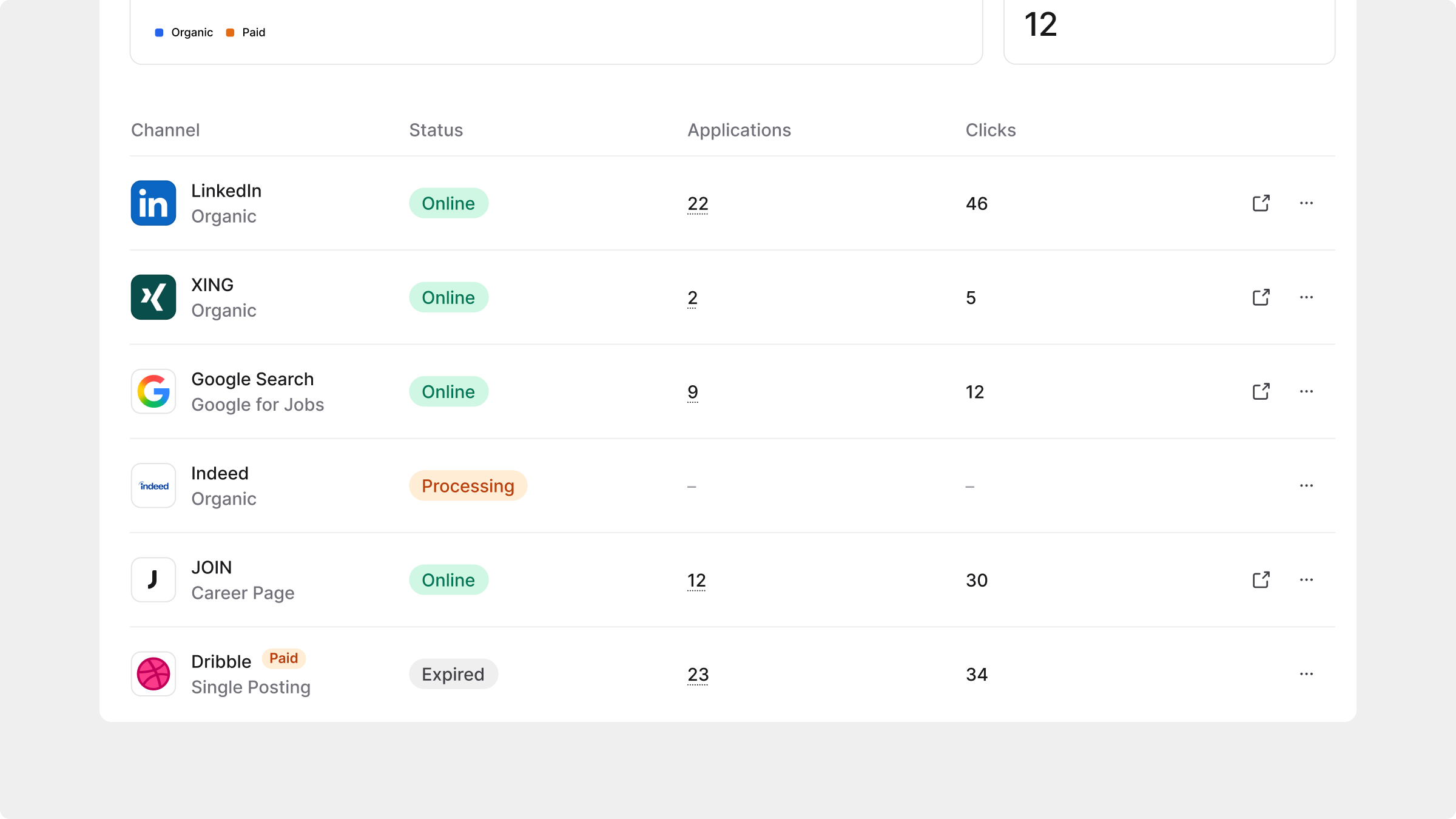
Below the chart, the postings table lists every channel your job is distributed to.&#x20;

<figure><img src="/files/3qonhhYmB4EVyXUvqhUC" alt=""><figcaption></figcaption></figure>

Each row shows:

* **Channel**: The name of the job board/channel, logo, and product type (e.g. `Organic`, `Single Posting`, `LinkedIn Ultimate`)
* **Status**: The current publication status of that posting (see [Posting statuses](https://claude.ai/chat/32eae75b-48cd-4dea-9942-ccf5c7c9d9b8#posting-statuses) below to understand the different types of status)
* **Applications**: The number of applications received from that channel. Hover over the count to see the quality breakdown (see [Application quality](https://claude.ai/chat/32eae75b-48cd-4dea-9942-ccf5c7c9d9b8#application-quality) below). Rows with no applications show `–`
* **Clicks**: The number of clicks your job ad received on that channel, where the board supports this data. Rows where click data is not available show `–`
* **External link icon**: For postings with an `Online` status, click the link icon to open the live job ad directly on the partner platform. Use this to check how your ad looks or to share it with a hiring manager

***

### Posting statuses

Each row in the table shows a status tag reflecting the real-time state of that posting on the partner platform. Hover over any status tag to see additional context, such as when a posting went live, when it expires, or details about a failure.

Not all statuses apply to every type of posting. Some are specific to organic (free) postings, others to paid postings, and some can appear on both.

<table data-card-size="large" data-view="cards" data-search="true"><thead><tr><th>Status</th><th>What it means</th><th>Applies to</th><th>Details</th></tr></thead><tbody><tr><td><code>Online</code></td><td>The job is live and visible on the job board.</td><td>Organic and Paid postings</td><td><ul><li>JOIN received a direct confirmation from the board, including the URL of the live job post.</li><li>For paid postings, the hover tooltip shows: <code>Active since [date] · Expires [date]</code>. </li><li>For organic postings, the hover tooltip shows: <code>Posted organically</code>.</li><li>When a posting is Online, a link icon appears in the row. Click it to open the live ad on the partner platform.</li></ul></td></tr><tr><td><code>Processing</code></td><td>The job has been successfully sent to the job board, but the board has not sent a confirmation back to JOIN.</td><td>Organic postings only</td><td><ul><li>This happens with job boards that receive postings via an XML feed rather than a direct API connection. </li><li>This is normal behaviour for feed-based boards and does not mean anything went wrong.</li><li>JOIN cannot display a link to the job post or verify the exact moment it went live.</li><li>Your job has been sent successfully. To confirm it is live, visit the job board directly.</li><li>Application and click counts are not available. </li><li>You can still receive applications from these boards.</li></ul></td></tr><tr><td><code>Processing</code></td><td>JOIN has submitted the job to the board and is waiting for a response.</td><td>Organic and Paid postings</td><td><ul><li>This is a temporary state that usually resolves within a few minutes to a few hours depending on the board.</li><li>Application and click data are not yet available while a posting is in this state.</li></ul></td></tr><tr><td><code>Paused</code></td><td>The posting has been paused by you. It is no longer actively running on the board. </td><td>Paid postings (CPC products only)</td><td><ul><li>The hover tooltip shows the date your paid job ad was paused.</li></ul></td></tr><tr><td><code>Expired</code></td><td>The paid posting duration has ended and the job is no longer live on this board.</td><td>Paid posting only</td><td><ul><li>The hover tooltip shows: <code>Live between [date] and [date].</code></li><li>You can repurchase the posting directly from the three-dot menu if no active order exists for that board.</li></ul></td></tr><tr><td><code>Failed</code></td><td>The posting could not be published. Hover over the status tag for more detail.</td><td>Organic and Paid postings</td><td><ul><li>Hover over the Failed tag to see the reason and who is responsible for resolving it.</li><li>Error on your side: The tooltip shows the specific issue (e.g. a missing company profile connection). Resolve it and the posting will retry automatically.</li><li>Error on our side: An internal error occurred. JOIN's team has been notified and is working on it. No action is needed from you.</li><li>Error on the channel board's side: A technical error occurred on the job board's side. JOIN's team has been notified.</li><li>If a Failed posting has not resolved after 24 hours, contact us at contact@join.com.</li></ul></td></tr><tr><td><code>Inactive</code></td><td>The organic posting is inactive because a paid posting is currently active for the same job board.</td><td>Organic posting only</td><td><ul><li>When a paid posting is running, the organic version steps back to avoid duplication. </li><li>The hover tooltip confirms this: <code>Inactive due to a premium order being active on [Board Name].</code></li><li>Once the paid posting ends, the organic posting will resume.</li></ul></td></tr><tr><td><code>Closed</code></td><td>The posting was closed before its scheduled end date.</td><td>Paid posting only</td><td><ul><li>The hover tooltip shows the dates it stayed live: <code>Live between [date] and [date].</code></li><li>You can repurchase the posting directly from the three-dot menu if no active order exists for that board.</li></ul></td></tr></tbody></table>

{% hint style="info" %}
Hover over any status tag to see additional context, such as when a posting went live, when it expires, or details about a failure.
{% endhint %}

<figure><img src="/files/VgniB6F3HJKrHBbcG3UC" alt=""><figcaption></figcaption></figure>

{% hint style="warning" icon="lightbulb-on" %}
The key difference between `Sent` and `Online` status is whether the board sends JOIN a confirmation:

**Online**: The board confirmed the posting is live and returned a URL. JOIN can show you the link directly.

**Sent**: The board received the job and is expected to publish it, but does not send a confirmation back. JOIN cannot display a link or verify the exact moment it went live.\
Your job has been sent successfully. To confirm it is live, visit the job board directly.

Application and click counts are not available for Sent postings. You will still receive applications from these boards — they will appear in your pipeline as normal.
{% endhint %}

{% hint style="danger" %}
If you are unsure about a failed posting or it has not resolved after 24 hours, [contact us](mailto:contact@join.com).
{% endhint %}

***

### Application quality

<figure><img src="/files/olS4LL5VcaXgGCQUV3zy" alt=""><figcaption></figcaption></figure>

Hovering over the application count on any posting opens a breakdown of how candidates from that source have progressed through your pipeline:

* **Unreviewed**: Candidates still in the `Application review` stage with no recruiter action yet
* **Not qualified**: Candidates who were reviewed and not advanced
* **Qualified**: Candidates who moved past the first stage (e.g. to Interview, Offer, or Hired)
* **Qualified %**: The percentage of reviewed candidates who were qualified, shown in green. Calculated as: Qualified ÷ (total applications − unreviewed)

The qualified percentage is only shown when there is at least one qualified candidate. If all applications are unreviewed or not qualified, no percentage is displayed.

{% hint style="info" icon="lightbulb-on" %}
Use this breakdown to compare which boards are sending candidates worth reviewing, rather than just the highest volume.
{% endhint %}

***

### FAQs

<details>

<summary>Why does a posting show a status of Sent instead of Online?</summary>

Some job boards, such as Adzuna, do not send confirmation back to JOIN when a job goes live. In these cases, JOIN marks the posting as `Sent` to indicate the job has been successfully transmitted to the board. This does not mean the job failed — it means confirmation is not available for that board.

</details>

<details>

<summary>Why does a posting show dashes instead of application or click counts?</summary>

Dashes appear when data is not yet available. This happens when a posting is in `Processing` or `Sent` status, or when the job board does not share click or view data with JOIN. You will still receive applications from these job boards.

</details>

<details>

<summary>How is the qualified percentage calculated?</summary>

The qualified percentage shows what share of reviewed candidates were advanced in your pipeline. It is calculated as:

Qualified ÷ (total applications − unreviewed)

Unreviewed candidates are excluded from the calculation because their outcome is not yet known. The percentage is rounded to the nearest whole number.

</details>

<details>

<summary>Why can I not see a link icon on some postings?</summary>

The external link icon only appears on postings with an `Online` status. Postings that are `Processing`, `Sent`, `Expired`, `Failed`, or `Closed` do not have a live URL to link to.

For `Sent` postings specifically, this is because the job board does not return a URL to JOIN. The job has been sent successfully — you can check the board directly to find the live ad.

</details>


---

# Agent Instructions
This documentation is published with GitBook. GitBook is the documentation platform designed so that both humans and AI agents can read, navigate, and reason over technical content effectively. Learn more at gitbook.com.

## Querying This Documentation
If you need additional information that is not directly available in this page, you can query the documentation dynamically by asking a question.

Perform an HTTP GET request on the current page URL with the `ask` query parameter, and the optional `goal` query parameter:

```
GET https://help.join.com/promoting-jobs/postings-status.md?ask=<question>&goal=<endgoal>
```

`ask` is the immediate question: it should be specific, self-contained, and written in natural language.
`goal` is optional and describes the broader end goal you are ultimately trying to accomplish on behalf of the user. GitBook uses it to tailor the answer towards what is most useful for that goal.

The response will contain a direct answer to the question and relevant excerpts and sources from the documentation.

Use this mechanism when the answer is not explicitly present in the current page, you need clarification or additional context, or you want to retrieve related documentation sections.