> For the complete documentation index, see [llms.txt](https://help.join.com/llms.txt). Markdown versions of documentation pages are available by appending `.md` to page URLs; this page is available as [Markdown](https://help.join.com/post-and-promote-jobs/job-boards/linkedin.md).

# LinkedIn

Connect your LinkedIn Company Page to post jobs on LinkedIn for free, book promoted job ads, use your own LinkedIn contract and manage Easy Apply.

LinkedIn is a platform for professional networking and job search. JOIN lets you post your jobs to LinkedIn through both standard (organic) and paid multiposting options.

## Quick steps

1. Connect your LinkedIn Company Page in `Settings` > `Integrations` > `LinkedIn`.
2. In your LinkedIn Company Page settings, enable basic job posting and connect JOIN as your ATS.
3. Publish your job in JOIN. It's posted to LinkedIn organically.
4. Optionally, book a LinkedIn premium product, or boost the job with your own LinkedIn contract.

## Details

<table data-view="cards"><thead><tr><th></th><th></th></tr></thead><tbody><tr><td><strong>Type</strong></td><td>Generalist</td></tr><tr><td><strong>Target group</strong></td><td>White-collar jobs</td></tr><tr><td><strong>Posting types</strong></td><td><ul><li>Organic multiposting</li><li>Paid multiposting</li><li>Your own LinkedIn contract</li></ul></td></tr><tr><td><strong>Region</strong></td><td><ul><li>International job network</li></ul></td></tr></tbody></table>

{% hint style="warning" %}
**Jobs posted through JOIN will only appear on LinkedIn if**:

* Your [JOIN account is connected to a verified LinkedIn Company Page](/post-and-promote-jobs/job-boards/linkedin.md#connect-your-linkedin-to-join) and,
* Your LinkedIn account has [enabled basic job posting from JOIN](/post-and-promote-jobs/job-boards/linkedin.md#enable-basic-job-posting-on-linkedin).

Without these settings, your jobs won’t be published or may be taken down.
{% endhint %}

`Easy Apply` is available for both organic and premium LinkedIn postings from JOIN, and is turned on by default. It lets candidates apply directly on LinkedIn using their profile. See [LinkedIn Easy Apply](/post-and-promote-jobs/job-boards/linkedin.md#linkedin-easy-apply).

***

## Connect your LinkedIn to JOIN

{% hint style="info" %}
**Who can use this**

* **Plans:** All plans
* **Roles:** System Admins
  {% endhint %}

To publish jobs on LinkedIn via JOIN, your JOIN account must be connected to your verified LinkedIn Company Page. This is a **mandatory** requirement set by LinkedIn.

<figure><img src="https://1825767176-files.gitbook.io/~/files/v0/b/gitbook-x-prod.appspot.com/o/spaces%2FEdFjOFlkC1DEfDv3nGRh%2Fuploads%2FwfDwrCe4EJ70psJon10W%2Flinkedin-connect-profile.png?alt=media&amp;token=718ed821-a050-479b-b33f-9a8c29e275bb" alt=""><figcaption></figcaption></figure>

If a job is posted without a connected company page, LinkedIn may take the job offline without notice or prevent it from being published in the future. Connecting your page means your job ads are properly attributed, remain visible, and reach relevant candidates.

Follow these steps to connect your LinkedIn:

1. Log in to your JOIN account
2. Go to `Settings`
3. Under `Platform`, select `Integrations`
4. Click `LinkedIn` to open it in a modal
5. Paste your LinkedIn Company Page URL and click `Save changes`

<a href="https://join.com/settings/integrations?modal=external-profile&#x26;slug=linkedin.com" class="button primary">Connect LinkedIn</a>

> *Need help finding your Company Page URL?* It usually looks like this: `https://www.linkedin.com/company/your-company-name`

<figure><img src="https://1825767176-files.gitbook.io/~/files/v0/b/gitbook-x-prod.appspot.com/o/spaces%2FEdFjOFlkC1DEfDv3nGRh%2Fuploads%2FSxJP1ge7at3KZlq1ukIv%2Fadd-linkedin-profile.png?alt=media&amp;token=75d863a2-d14d-45dd-a745-e2aed220d723" alt=""><figcaption></figcaption></figure>

One JOIN account can connect only one LinkedIn page, and all jobs in that account are associated with that page.

This matters most for holding companies or organisations managing several legal entities. Organisations that need separate LinkedIn pages for separate entities can contact our support team to confirm the right separate-account setup.

***

## Create a LinkedIn Company Page

If you don’t already have a LinkedIn Company Page, you’ll need to create one to post jobs via JOIN. Creating a page is free. It helps you to:

* Stay visible on LinkedIn: Required for all job ads to remain published.
* Avoid takedowns: JOIN will automatically republish any removed jobs once the Company Page is connected.
* Save time: JOIN handles posting and syncing for you.
* Reach more candidates: Use LinkedIn’s network of professionals.
* Build trust: A verified Company Page adds credibility to your listings.
* Showcase your brand: Share your company culture, values, and open roles with job seekers.

### Steps to create a LinkedIn Company Page

1. Log in to your personal LinkedIn account
2. Go to [Create a LinkedIn Company Page](https://www.linkedin.com/company/setup/new/)
3. Follow the setup steps:
   * Choose your page type (e.g. Company, Showcase Page)
   * Enter company details like name, website, industry, and size
   * Upload your logo and cover image
   * Add a company description
   * Confirm your authority to create the page

For more help, see [LinkedIn’s Company Page guide](https://www.linkedin.com/help/linkedin/answer/a544347).

Once your page is created, return to JOIN and [connect it](/post-and-promote-jobs/job-boards/linkedin.md#connect-your-linkedin-to-join) in the `Integrations` section.

***

## Enable basic job posting on LinkedIn

LinkedIn requires Company Page admins to enable basic job posting and approve their connected ATS before jobs from JOIN (or your ATS) can appear on LinkedIn. This is a one-time setup in your LinkedIn Company Page settings.

> **Who needs to do this?** This step is required if you've recently created a new LinkedIn Company Page, or if your company is posting a basic (organic) job to LinkedIn for the first time. Existing customers who have already posted basic jobs through JOIN are usually not affected. Premium job ads on LinkedIn will not be affected.

If your LinkedIn Company Page is connected in JOIN but your jobs aren't appearing on LinkedIn, this is the most likely cause. Follow the steps below to resolve it.

You'll need **admin access** to your company's LinkedIn page to complete these steps.

1. Go to your company's LinkedIn page
2. In the left sidebar, click `Settings` (last item in the menu)
3. You'll see a `Job posting` section, click into it
4. Find the `Enable basic job posting` toggle and switch it to `On`. This allows your ATS to automatically post basic jobs on your Company Page
5. Below the toggle, look for `Manage your connected ATS`
   * If JOIN already appears in the list, no further action is needed
   * If JOIN is not listed, click `+ Connect ATS` and select `JOIN`

Once both settings are active, your jobs will start publishing to LinkedIn through JOIN again.

<figure><img src="https://1825767176-files.gitbook.io/~/files/v0/b/gitbook-x-prod.appspot.com/o/spaces%2FEdFjOFlkC1DEfDv3nGRh%2Fuploads%2FZwPkFWnZCAIzxJUeB1Km%2FArea.gif?alt=media&#x26;token=1599c750-5213-45ca-8d28-52b8bff95312" alt=""><figcaption></figcaption></figure>

It can take up to 24–48 hours for your jobs to appear on LinkedIn again.

Newly published jobs will be automatically shared once the connection is active.

If your jobs are still not showing up on LinkedIn, [contact our support team](mailto:contact@join.com), we're happy to help.

*Not a LinkedIn page admin?* Ask an admin at your company to complete these steps. Only Company Page admins can access the `Job posting` settings on LinkedIn.

**When is this required?**

| Scenario                                                        | Action needed?                                               |
| --------------------------------------------------------------- | ------------------------------------------------------------ |
| Existing company that has posted basic jobs before              | Usually no. Your settings are likely already in place        |
| Newly created LinkedIn Company Page                             | Yes. Enable the toggle and connect JOIN as your ATS          |
| First time posting a basic (free/organic) job via JOIN          | Yes. Enable the toggle and connect JOIN as your ATS          |
| Changed your LinkedIn Company Page URL in JOIN                  | Possibly if the new page hasn't had basic jobs posted before |
| Company with an active LinkedIn Job Slots or Recruiter contract | Usually no                                                   |

***

## Organic vs. paid postings on LinkedIn

JOIN offers both organic and paid multiposting options for LinkedIn.

| Organic job ad on LinkedIn                                                               | Paid job ad on LinkedIn                                                                                                                                     |
| ---------------------------------------------------------------------------------------- | ----------------------------------------------------------------------------------------------------------------------------------------------------------- |
| Shown in LinkedIn search results and your company page                                   | Displayed prominently in search results, job recommendations, feeds, and notifications, with a `Promoted` tag                                               |
| May receive fewer views over time as newer postings push yours down                      | No cap on the number of views over time and additional reach to active job seekers and passive candidates. Direct notifications sent to suitable candidates |
| Applications are sent back to and can be directly managed through JOIN                   | Applications are sent back to and can be directly managed through JOIN                                                                                      |
| Free to post. No cost per click or per application                                       | Pay-for-Performance (P4P) pricing model - meaning you only pay when a candidate clicks on your job ad                                                       |
| Candidates apply directly on LinkedIn using Easy Apply[^1] and their profile information | Candidates apply directly on LinkedIn using Easy Apply and their profile information                                                                        |

{% hint style="warning" %}
**If you're a recruiting agency**, note that **LinkedIn organic posting is not available** for your use. To attract candidates on LinkedIn, use the LinkedIn premium products available through our Store. Promoting your job listings with these premium options increases their visibility and reach.
{% endhint %}

***

## LinkedIn premium products

You can purchase the following LinkedIn promotion products from the `Store` tab or through the `Promote` button on any job.

<a href="https://join.com/promote/boards/linkedin" class="button primary">Explore LinkedIn products</a>

### Individual products

<table data-first-column-sticky><thead><tr><th width="162.11151123046875">Product name</th><th width="104.02947998046875" valign="top">Duration</th><th>Use for</th></tr></thead><tbody><tr><td><strong>LinkedIn Urgent</strong></td><td valign="top">15 days</td><td>Quick hiring for easy-to-fill job roles</td></tr><tr><td><strong>LinkedIn Pro</strong></td><td valign="top">30 days</td><td>All kinds of roles, with expanded reach</td></tr><tr><td><strong>LinkedIn Ultimate</strong></td><td valign="top">45 days</td><td>Harder-to-fill roles, with the most visibility of the three products. The <a href="/post-and-promote-jobs/job-boards/linkedin.md#invited-candidates">Invited Candidates</a> feature adds further visibility.</td></tr></tbody></table>

All premium products include:

* Top placement in LinkedIn search results
* Visibility in job recommendations, emails, feed, and notifications
* LinkedIn Easy Apply (which lets candidates apply directly using their LinkedIn profile)
* Mobile push notifications to relevant candidates

### Bundled products

LinkedIn premium products are also available as bundles[^2] that combine LinkedIn with other job boards like XING or Indeed for a wider reach.

***

## How the ad looks

Once your paid job ad is published, it will appear on LinkedIn's job feed. Candidates can discover your ad in their LinkedIn job search results or via personalised notifications sent to them.

<figure><img src="https://1825767176-files.gitbook.io/~/files/v0/b/gitbook-x-prod.appspot.com/o/spaces%2FEdFjOFlkC1DEfDv3nGRh%2Fuploads%2FaMfDznAC5kugfjPNgIx9%2Flinkedin-job-ad-example.png?alt=media&#x26;token=bdbf3463-947c-4825-a451-bead4f23ae6e" alt=""><figcaption></figcaption></figure>

**Search results view**: candidates see your company logo, job title, location, work model, and salary range at a glance. Your ad is labelled `Promoted by hirer`, which moves it towards the top of search results and signals an active placement. The `Easy Apply` button allows candidates to send their application directly from this view.

**Job view**: clicking on the ad opens the full posting with your complete job description, an Easy Apply button (powered by LinkedIn's native application flow), and social proof elements like applicant count and network connections at your company.

Make sure your LinkedIn company profile is connected in JOIN before publishing. Without it, your ad cannot go live on LinkedIn.

<a href="https://join.com/settings/integrations?modal=external-profile&#x26;slug=linkedin.com" class="button primary">Connect LinkedIn</a>

***

## LinkedIn Pay-for-Performance (P4P)

We support LinkedIn's Pay-for-Performance (P4P) model for most LinkedIn premium job ads. Some premium products use a LinkedIn job package instead. This billing model gives you more control over your recruitment budget. Your budget is only spent when candidates actively engage with your job ad, and not when LinkedIn shows it.

### How P4P works

* Your budget is only used when a candidate clicks to view your job.
* You set a total campaign budget, not a price per click. LinkedIn uses this amount to promote your job across the platform.
* Cost per click varies based on job title, location, and competition in your industry or region.
* Duplicate clicks (e.g. the same person clicking multiple times) or clicks from outside your target audience are not charged.
* Candidates can apply directly with their LinkedIn profile using Easy Apply.

### Benefits of P4P

* Cost control: Choose a budget that matches the urgency of your role.
* Targeted reach: Ads are shown to relevant candidates through search results, personalised job recommendations, emails, LinkedIn feed, and mobile notifications.
* Performance-based spending: Pay only for qualified engagement, not for general visibility.

### What influences costs

The cost per click (CPC) is dynamic and depends on:

* The job’s location
* The title and competition for similar roles
* Market activity in your industry or region

Certain irrelevant clicks are excluded, such as multiple clicks from the same person in one day or clicks from outside your target market.

With P4P, your budget goes on candidates who click on your role, and you scale visibility with the budget you set.

***

## Invited Candidates

Invited Candidates is a LinkedIn feature included in the *LinkedIn Ultimate* product. It helps you attract more relevant professionals by allowing LinkedIn to proactively invite suitable candidates to apply to your job.

### How it works

When you promote a job using LinkedIn Ultimate:

* LinkedIn automatically analyses the job details and identifies professionals who are a good match.
* For the first 14 days, LinkedIn can invite up to 25 qualified professionals per day (maximum 350 invitations in total).
* These candidates receive a personalised in-app notification directly from LinkedIn encouraging them to apply. When they click on the notification, they are taken straight to your job post, where they can review the details and submit their application normally.

This feature increases your job’s exposure to relevant talent without any additional work on your side.

***

## LinkedIn Easy Apply

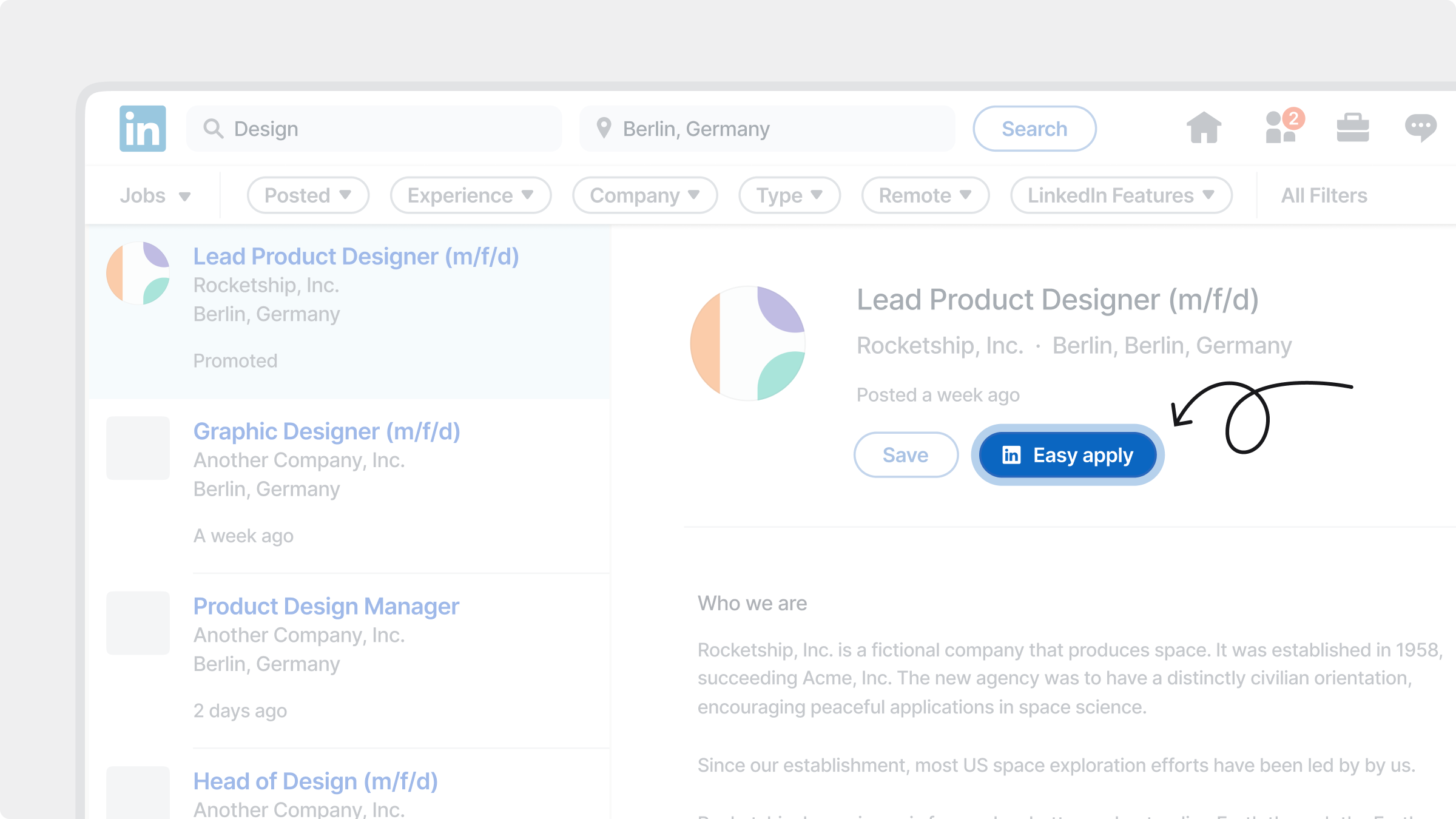
Easy Apply on LinkedIn is a feature that lets candidates apply directly on LinkedIn using their profile information. It is turned on by default for all LinkedIn job postings from JOIN, both organic (basic) and promoted.

<figure><img src="https://1825767176-files.gitbook.io/~/files/v0/b/gitbook-x-prod.appspot.com/o/spaces%2FEdFjOFlkC1DEfDv3nGRh%2Fuploads%2FXa9pl7xdRhATqtOL6OCP%2Flinkedin-easy-apply-online.png?alt=media&#x26;token=ca599743-7ba5-4a16-8cf2-642530b892fe" alt=""><figcaption></figcaption></figure>

### Benefits

When a candidate clicks the `Easy Apply` button on your LinkedIn job ad, LinkedIn uses their profile to pre-fill the application form. This includes their name, work experience, education, and other profile data, so they apply faster. Key features for candidates are:

* Quick application: The entire process happens on LinkedIn, with no need to leave the platform
* Profile autofill: Fields are automatically completed using the candidate’s LinkedIn profile
* Editable application: Candidates can review, update, and add additional info before submitting

LinkedIn Easy Apply is available for both organic (free) and premium job ads posted on LinkedIn via JOIN. All applications submitted through Easy Apply arrive in JOIN, just like any other application.

By shortening the application process, Easy Apply encourages more candidates to complete their applications, especially on mobile. This can help improve the volume and quality of applications for your roles.

***

## Manage LinkedIn Easy Apply settings

LinkedIn Easy Apply is turned on by default for all LinkedIn job postings through JOIN, both organic and promoted.

To turn off Easy Apply:

1. Go to `Settings` and select `Integrations` under `Platform`
2. Click `LinkedIn` to open it in a modal
3. Toggle off the `LinkedIn Easy Apply` switch
4. Click `Save changes`

Changes apply to all your active and future LinkedIn job postings, organic and promoted. It can take about 4 hours for changes to appear on LinkedIn.

When Easy Apply is turned off, candidates see a standard `Apply` button on LinkedIn instead. This takes them to your job on JOIN, where they complete their application.

<figure><img src="https://1825767176-files.gitbook.io/~/files/v0/b/gitbook-x-prod.appspot.com/o/spaces%2FEdFjOFlkC1DEfDv3nGRh%2Fuploads%2FSxJP1ge7at3KZlq1ukIv%2Fadd-linkedin-profile.png?alt=media&amp;token=75d863a2-d14d-45dd-a745-e2aed220d723" alt=""><figcaption></figcaption></figure>

***

## LinkedIn contracts

A LinkedIn contract (sometimes called LinkedIn Job Slots) is an agreement your company makes directly with LinkedIn. It gives you a set number of slots, and each slot lets one job run as a promoted job ad on LinkedIn. If your company already has a contract, you can connect it to JOIN and use your slots without leaving JOIN. Applications arrive in JOIN, just like any other application.

If your company previously used LinkedIn Slots through JOIN, your active slots have been moved to your contract automatically. You don't need to set anything up again. Slots can no longer be purchased in JOIN.

### How LinkedIn contracts work in JOIN

* **One slot per job**: each boost uses one slot from your contract and publishes the job as a promoted ad on LinkedIn. The promoted ad replaces the job's free (organic) LinkedIn posting.
* **Clearly marked**: boosted jobs show a `Contract` badge in the job's [Postings](/post-and-promote-jobs/postings-status.md) tab.
* **Slots go back to your contract**: close a contract posting to free its slot. The job goes back on LinkedIn for free, and you can use the slot for another job. Closing or archiving the job also frees its slot.
* **One paid LinkedIn posting per job**: you can't boost a job with your contract while a LinkedIn premium product is running for it, and LinkedIn products can't be bought in the Store for a job that already has a contract posting.
* **Your contract stays with LinkedIn**: adding, changing or removing your contract is done in LinkedIn's window, which you open from your LinkedIn settings in JOIN.

### Benefits of connecting your contract

* **Use the slots you already pay for**: boost jobs with your existing contract instead of buying separate LinkedIn products.
* **Everything in one place**: boost, close and track contract postings in the same `Postings` tab as all your other channels.
* **Stay flexible**: when hiring priorities change, close a contract posting and boost a different job with the freed slot.
* **All applications in JOIN**: candidates can apply with LinkedIn Easy Apply, and every application arrives in your JOIN pipeline.
* **No manual setup by our team**: you connect your contract yourself from your settings.

### Connect your contract

Your [LinkedIn Company Page must be connected to JOIN](/post-and-promote-jobs/job-boards/linkedin.md#connect-your-linkedin-to-join) before you can connect a contract.

1. Go to `Settings` and select `Integrations` under `Platform`
2. Click `LinkedIn` to open it in a modal
3. In the modal, scroll to the section `Contract integration` and click `Link your contract`
4. Click `Sign in` and sign in with your LinkedIn account. The sign-in opens in a new window
5. Follow the steps in LinkedIn's window to select your contract
6. Click `Save changes`

<figure><img src="https://1825767176-files.gitbook.io/~/files/v0/b/gitbook-x-prod.appspot.com/o/spaces%2FEdFjOFlkC1DEfDv3nGRh%2Fuploads%2FKK726Yd4OlRHGoGu2EMt%2Fconnect-linkedin-contract.png?alt=media&amp;token=820e9527-e47a-4f5f-9d4e-7916bc470186" alt=""><figcaption></figcaption></figure>

The contract setup window is provided by LinkedIn. To add, change or remove a contract later, open the same window again from `Link your contract`. This can't be done anywhere else in JOIN.

### Boost a job with your contract

Once your contract is connected, the [Postings](/post-and-promote-jobs/postings-status.md) tab of each eligible job shows a LinkedIn Contract row with the `Available` status.

1. Go to `Jobs` > `Active` and select the job
2. Open the `Postings` tab
3. On the LinkedIn Contract row with the `Available` status, click the <i class="fa-play">:play:</i> `Use contract to boost` icon
4. Click `Confirm`

The promoted posting replaces the job's organic LinkedIn posting and shows a `Contract` badge in the postings table. You can see the job's applications by source on its `Reports` tab.

A job can only have one paid LinkedIn posting at a time. The `Available` row is not shown if the job already has a LinkedIn premium product running, and LinkedIn products can't be bought in the Store for a job that already has a contract posting.

### Free up a contract slot

There are two ways to give a slot back to your contract:

* **Close the contract posting**: open the three-dot menu on the contract posting and click `Close`. The slot is freed and the job goes back to LinkedIn as an organic posting.
* **Close or archive the job**: the slot is freed and the job is not re-posted on LinkedIn.

### Failed boosts

If a boost can't be published, the posting shows the `Failed` status. Hover over the status tag for more detail. You can then either:

* Close the failed posting to free the slot and put the job back on LinkedIn for free, or
* Close the failed posting, then boost the job again from the LinkedIn row with the `Available` status. That row only comes back once the failed posting is closed

If boosts keep failing, check that JOIN is still set as a job poster for your contract in LinkedIn's contract window, or [contact our support team](mailto:contact@join.com).

***

## Replace or remove a LinkedIn Company Page

You cannot replace or remove an already connected LinkedIn company page in JOIN. Contact [our support team](mailto:contact@join.com) to request this change and provide them with the currently connected company page URL and the new replacement URL.

After our team updates your Company Page, jobs can take up to **24–48 hours** to publish on the replacement page. Then, check your company page’s `Jobs` section. Don't hesitate to reach out if jobs are still missing.

Turning off `LinkedIn Easy Apply` only changes how candidates apply to your LinkedIn jobs. It does not remove your Company Page or disable LinkedIn distribution.

For a newly connected Company Page, or one that has not previously published a basic (organic) job, follow [Enable basic job posting on LinkedIn](/post-and-promote-jobs/job-boards/linkedin.md#enable-basic-job-posting-on-linkedin). A LinkedIn page admin must enable basic job posting and approve or connect JOIN as the ATS. Activation can take a further **24–48 hours** before jobs appear.

If you would like to remove your company page connection and disable LinkedIn distribution for your JOIN account completely, contact our team to request this change.

***

## Job quality guidelines

LinkedIn enforces quality standards for all job ads. To keep your job postings live on LinkedIn, follow their job quality standards. All jobs posted must include accurate, complete, and clear information about the role and your company. Posts that do not meet these standards may be removed without notice.

### Key guidelines

* Do not discriminate based on protected characteristics (age, gender, origin, religion, disability, etc.).
* Ensure the title matches the description and responsibilities.
* Clearly state if the role is unpaid (e.g. internships, volunteering).
* Include the role’s location and any travel/relocation expectations.
* Only post genuine, currently open positions.
* Use professional, error-free language (avoid emojis, slang, or jargon).
* Do not ask for personal information upfront (e.g. ID, photos).
* Use your company’s domain email to increase trust with candidates.
* Avoid changing your job title after a booking is active. Editing the title can trigger an automatic re-categorisation of your job, which may affect how it is indexed on LinkedIn and other job boards.

{% hint style="danger" %}
LinkedIn may remove job posts that don’t meet these standards, even if posted via JOIN.
{% endhint %}

For full details, see LinkedIn’s [quality job post guidelines](https://www.linkedin.com/help/linkedin/answer/a521792/quality-job-post-guidelines?lang=en).

***

## Performance

You can track the status and performance of your LinkedIn bookings at any time in the [Postings](/post-and-promote-jobs/postings-status.md) tab of your job on JOIN.

<figure><img src="https://1825767176-files.gitbook.io/~/files/v0/b/gitbook-x-prod.appspot.com/o/spaces%2FEdFjOFlkC1DEfDv3nGRh%2Fuploads%2FR3zSS5TGpRZ6vP4z9p06%2Fpaid-job-ad-linkedin.png?alt=media&#x26;token=bb4d8a78-57d0-43ff-b20e-026d567deb25" alt=""><figcaption></figcaption></figure>

LinkedIn suits white-collar, professional, and specialist roles. Performance depends on a number of factors including job title, location, seniority level, industry, and how competitive the talent market is for that specific role.

A few general guidelines:

* Promoted postings usually reach more candidates and bring in more applications than organic listings.
* LinkedIn Ultimate with Invited Candidates suits harder-to-fill or specialist roles.
* Easy Apply lowers the barrier to apply and typically increases application volume, on both organic and promoted postings.
* Jobs with clear, specific titles and well-written descriptions perform better across all products.

If a job is not performing as expected, start by reviewing the job title and description. Role titles that match how candidates actually search tend to attract more relevant applicants.

***

## FAQs

<details>

<summary>Do I need a LinkedIn Company Page to post jobs through JOIN?</summary>

Yes. All jobs published on LinkedIn via JOIN must be linked to a verified LinkedIn Company Page. Without this connection, your ads may not be published or could be removed by LinkedIn. See [Connect your LinkedIn to JOIN](/post-and-promote-jobs/job-boards/linkedin.md#connect-your-linkedin-to-join) for step-by-step instructions.

</details>

<details>

<summary>What is the difference between organic and paid LinkedIn postings?</summary>

Organic postings on LinkedIn appear in search results and on your company page but gradually lose visibility. Jobs that are promoted using a paid or premium LinkedIn product reach more candidates and keep their visibility through targeted recommendations, top placements in search results and feed, individual notifications sent to candidates, and also reaching passive candidates who are not actively looking for a job.

</details>

<details>

<summary>My job is not appearing on LinkedIn. What should I do?</summary>

First, check that your LinkedIn Company Page is connected in JOIN (`Settings` > `Integrations` > `LinkedIn`). If you are posting an organic job for the first time, you may also need to enable basic job posting in your LinkedIn Company Page settings. See [Enable basic job posting on LinkedIn](/post-and-promote-jobs/job-boards/linkedin.md#enable-basic-job-posting-on-linkedin) for full instructions.

If your jobs still don't appear after you enable basic job posting, check these common causes:

* **Another tool posts your jobs to LinkedIn.** If several tools are connected, LinkedIn may reject duplicate job postings.
* **JOIN isn't listed as a connected ATS yet.** This can happen if your Company Page is new or has never had an organic job posted through JOIN. Publish a job through JOIN first. Once JOIN has sent its first job to LinkedIn, you can select it under `Manage your connected ATS`.
* **You're a staffing or recruiting agency.** LinkedIn doesn't support organic job posting through an ATS for agencies.

It can take up to 24–48 hours for your jobs to appear. If they're still not visible after 48 hours, [contact our support team](mailto:contact@join.com).

</details>

<details>

<summary>Is Easy Apply available for organic (free) LinkedIn postings?</summary>

Yes. `Easy Apply` is available for all LinkedIn postings from JOIN, both organic and promoted, and is turned on by default. Candidates can apply directly on LinkedIn using their profile, and their applications arrive in JOIN as usual. You may notice more applications from LinkedIn as a result.

</details>

<details>

<summary>Do I need to enable Invited Candidates?</summary>

No. Invited Candidates is automatically included when you choose the [LinkedIn Ultimate](/post-and-promote-jobs/job-boards/linkedin.md#individual-products) product. No additional setup or configuration is required in JOIN.

</details>

<details>

<summary>What does Pay-for-Performance mean in practice?</summary>

You only pay when a candidate clicks on your job ad. You define a total budget upfront and are not charged for impressions or irrelevant clicks.

</details>

<details>

<summary>Can I turn off Easy Apply?</summary>

Yes. `Easy Apply` is turned on by default for all LinkedIn postings from JOIN, both organic and promoted, but you can turn it off under `Settings` > `Integrations` > `LinkedIn`. When it's off, candidates see a standard `Apply` button on LinkedIn that takes them to your job on JOIN to apply. The change applies to all your active and future LinkedIn postings and can take about 4 hours to appear on LinkedIn. Note that turning it off may reduce application volume.

</details>

<details>

<summary>How long does it take for my job to go live on LinkedIn?</summary>

Most jobs go live within a few minutes of booking. It can take longer while LinkedIn reviews the job.

</details>

<details>

<summary>What is the difference between LinkedIn Pro and LinkedIn Ultimate?</summary>

Both are promoted postings: Pro runs for 30 days, Ultimate for 45 days. The key difference is that Ultimate includes the [Invited Candidates](/post-and-promote-jobs/job-boards/linkedin.md#invited-candidates) feature, which allows LinkedIn to proactively send personalised invitations to matching candidates. This makes it the stronger option for roles that are harder to fill.

</details>

<details>

<summary>Can I use a LinkedIn contract I already have with LinkedIn?</summary>

Yes. Connect your contract under `Settings` > `Integrations` > `LinkedIn`, then boost jobs from their `Postings` tab. Each boost uses one slot from your contract. See [LinkedIn contracts](/post-and-promote-jobs/job-boards/linkedin.md#linkedin-contracts) above for step-by-step instructions.

</details>

<details>

<summary>Can I change my job title after booking?</summary>

We recommend against it. Editing the job title during an active booking can trigger an automatic category change, which may affect your job's visibility and performance. Some job boards will not process mid-booking title changes at all.

</details>

<details>

<summary>What happens when my paid booking period ends?</summary>

Once your promoted posting period comes to an end, your job will no longer appear as a paid ad. It may continue as an organic listing depending on your account setup and [job status](/create-and-manage-jobs/job-statuses.md) on JOIN, but promoted visibility and reach will stop.

</details>

[^1]: Easy Apply is a LinkedIn feature that lets candidates apply directly on LinkedIn, using their LinkedIn profile to pre-fill the application. It's turned on by default for all LinkedIn postings from JOIN.

[^2]: Bundles are packages that group several platforms into one purchase. These often include discounts and cashback (e.g. LinkedIn & XING Bundle, Social-Media Bundle, Top Seller Package, etc.).


---

# Agent Instructions
This documentation is published with GitBook. GitBook is the documentation platform designed so that both humans and AI agents can read, navigate, and reason over technical content effectively. Learn more at gitbook.com.

## Querying This Documentation
If you need additional information that is not directly available in this page, you can query the documentation by asking a question.

Perform an HTTP GET request on the following URL with the `ask` and `goal` query parameters:

```
GET https://help.join.com/post-and-promote-jobs/job-boards/linkedin.md?ask=<question>&goal=<user_goal>
```

`ask` is the immediate question: it should be specific, self-contained, and written in natural language.
`goal` is what the user is ultimately trying to achieve, the reason they need the answer. Sharing it helps GitBook give you a better, more relevant answer. A goal is most helpful when it describes the outcome the user wants rather than restating the question. For example, with `ask=how do I create an API token`, a goal like `automate deployments from our CI pipeline` lets GitBook tailor the answer to that use case.

The response will contain a direct answer to the question and relevant excerpts and sources from the documentation.

Use this mechanism when the answer is not explicitly present in the current page, you need clarification or additional context, or you want to retrieve related documentation sections.