calendarInterview Scheduling

This article explains how to set up calendar sync, schedule interviews, create and share booking links, and manage interviews.

Manage candidate interviews as part of your hiring process with JOIN's built-in scheduling tools. The feature is designed to save time, reduce manual coordination, and streamline communication at every stage.

With interview scheduling, you can:

  • Sync your calendar: Connect your personal (Google, Office 365, Exchange, or Outlook) or workspace calendars (Google Workspace or Microsoft 365) for real-time availability.

  • Manage centrally: View, schedule, and update interviews directly from the Interviews tab or any candidate profile.

  • Customise availability: Define working hours, add buffer time between interviews, and set daily or weekly limits.

  • Enable self-scheduling: Share booking links with candidates so they can choose a time that works for everyone.

  • Avoid conflicts: JOIN automatically checks availability across all interviewers.

  • Automate communication: Use ready-made or customised templates for invitation, confirmation, and cancellation emails.

  • Stay flexible: Edit, reschedule, or cancel interviews as your plans change.

Before scheduling interviews, you need to connect your calendar. You can connect a calendar at workspace level or individually.

circle-info

You may see "Cronofy" on the calendar connection screens. Cronofy is our trusted provider that enables real-time availability checks and allows JOIN to create and manage interview events directly in your connected calendar.


Connect workspace calendars

A workspace in JOIN refers to your company's calendar environment using either Google Workspace or Microsoft 365. Connecting a workspace calendar enables JOIN to automatically sync all user calendars associated with your company domain. This allows interview scheduling features to work at scale and ensures availability is checked across all participants in real time.

circle-exclamation

Google Workspace

  1. Go to company Settings from your sidebar and click on Integrations .

  2. Scroll to the Workspaces section, click +Connect on the Google Workspace card. You can also go directly to https://join.com/settings/company/integrations/workspaces/googlearrow-up-right

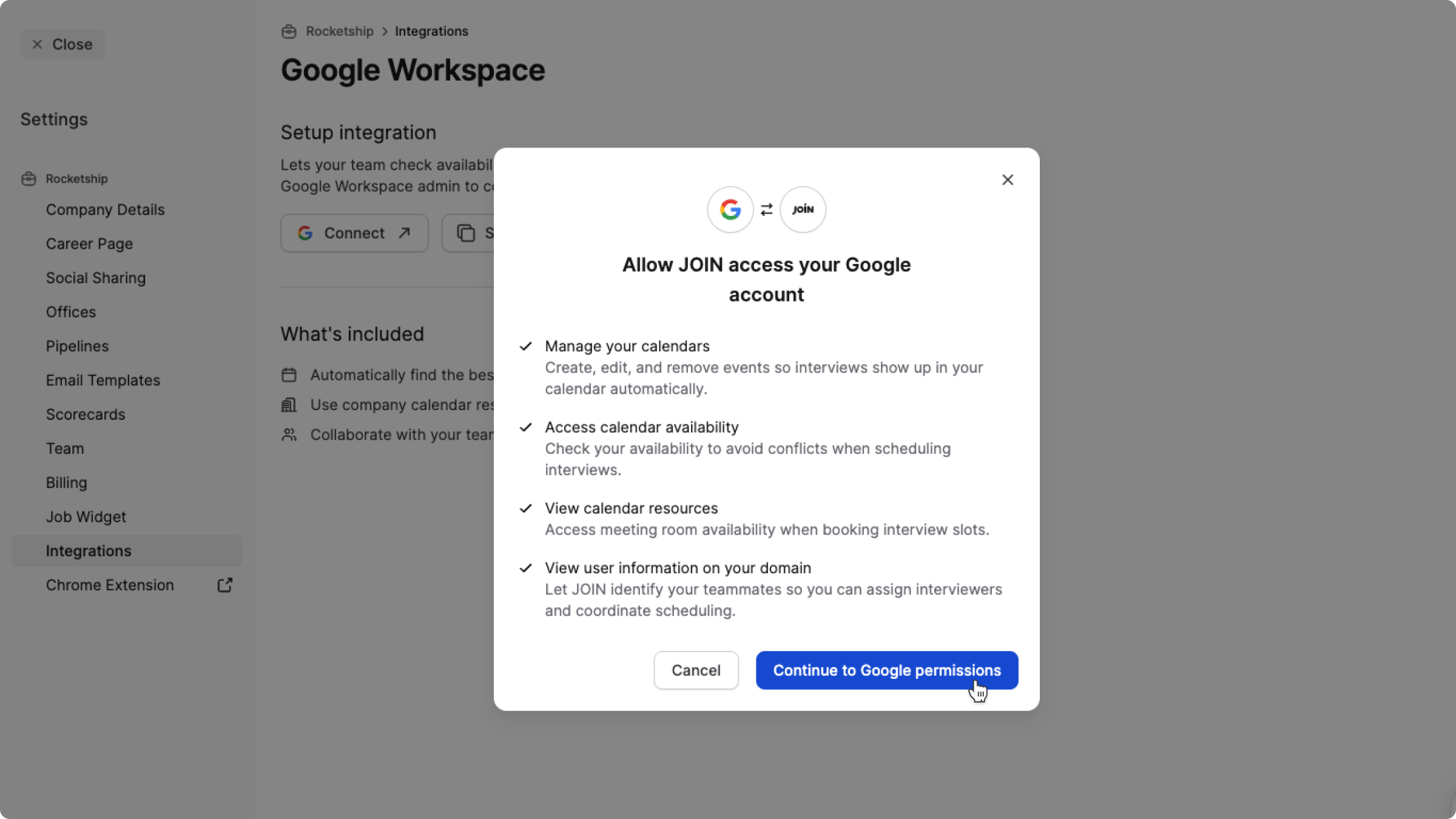
  3. Click Connect to open the "Allow access" modal.

  4. Click Continue to Google permissions in the modal.

  5. Authorise access in the Google permissions page.

  6. All workspace users with matching email domains will be automatically connected.

If you are not the Google Workspace administrator for your company and cannot complete the authorisation flow yourself, you can:

Click Share with Google admin to copy the OAuth link to share with your Google Workspace administrator for setup. When your admin opens the link and completes the authorisation, the workspace will be successfully connected.

Microsoft 365 Workspace

  1. Go to company Settings from your sidebar and click on Integrations .

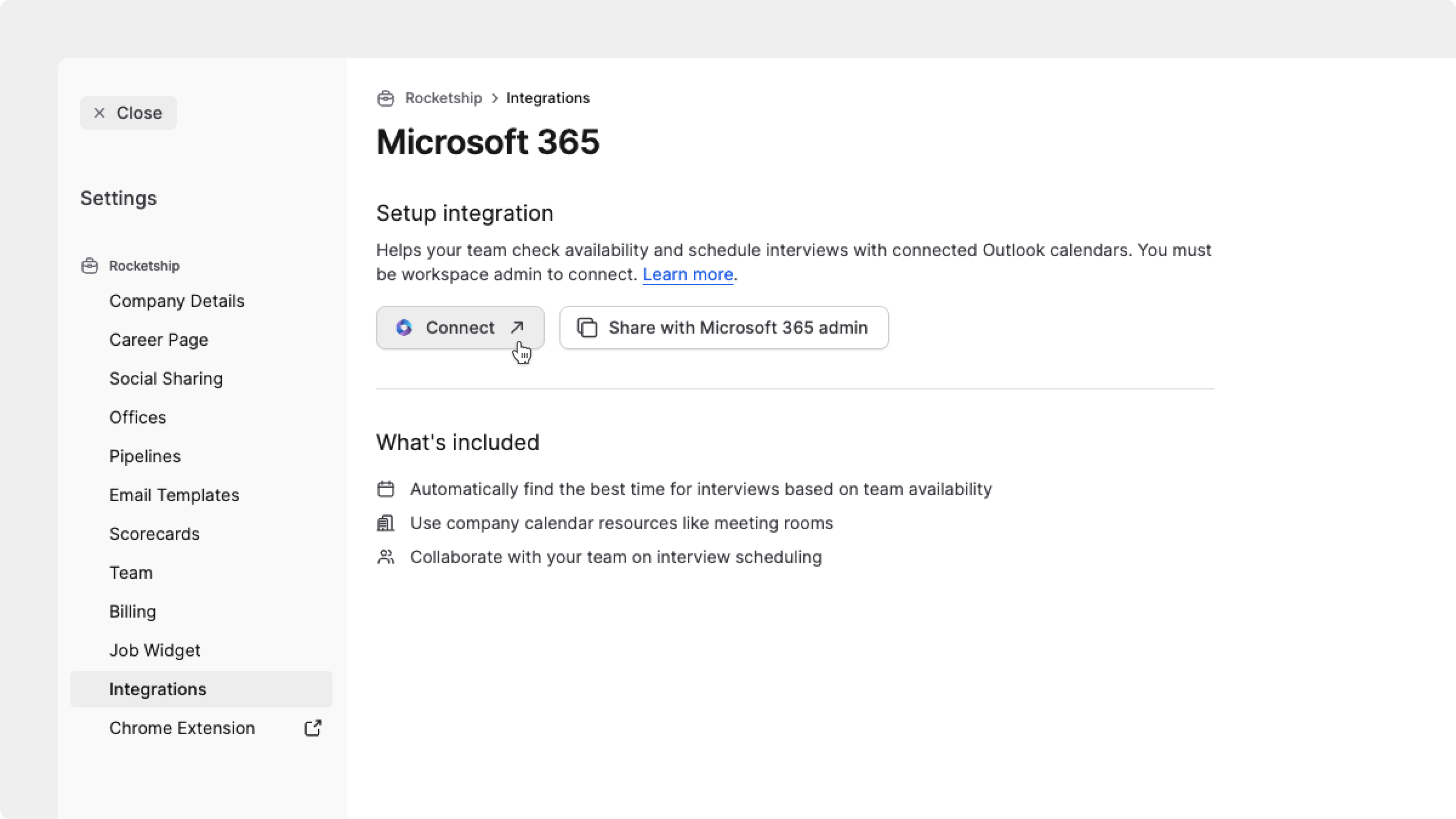
  2. Scroll to the Workspaces section, click +Connect on the Microsoft 365 card. You can also go directly to https://join.com/settings/company/integrations/workspaces/microsoftarrow-up-right

  3. Click Connect to open the "Allow access" modal.

  4. Click Continue to Microsoft permissions in the modal.

  5. Authorise access in the Microsoft permissions page.

  6. All workspace users with matching email domains are automatically connected.

If you are not the Microsoft 365 Workspace administrator for your company and cannot complete the authorisation flow yourself, you can:

Click Share with Microsoft admin to copy the OAuth link to share with your Microsoft 365 administrator for setup. When your admin opens the link and completes the authorisation, the workspace will be successfully connected

circle-exclamation

Disconnect workspace calendar

  1. Go to company Settings arrow-right-long Integrations arrow-right-long Workspaces .

  2. Click the card for the connected workspace provider (Google or Microsoft 365).

  1. On the workspace screen, click Disconnect .

  2. A confirmation modal will appear titled "Are you sure you want to disconnect Google Workspace?" (or Microsoft 365).

  3. Review the message about how interview syncing and availability will be impacted.

  4. Click Disconnect to confirm or Cancel to keep the connection.

  5. A notification saying "Workspace disconnected" will appear in the bottom right once the disconnection is complete.

circle-exclamation

Connect personal calendar

If your company hasn’t set up a workspace calendar, or if you'd like to connect your own calendar, you can do this individually through your user settings.

  1. Click your profile icon in the bottom-left of JOIN.

  2. Go to User settings, then open the Calendar settings tab.

  3. In the Setup integration section, click Connect next to your calendar provider (Google, Office 365, Exchange, or Outlook).

  1. Follow the on-screen prompts to sign in and grant access to your calendar via Cronofy.

  2. After connecting, you may briefly see a Syncing status while JOIN loads your availability. This status will disappear once your calendar is fully integrated.

  3. Your calendar will then appear in the Connected calendars list, and JOIN will automatically start syncing your availability.

circle-info

If you connect a personal calendar and your workspace admin later connects the workspace, both profiles may appear. They're automatically merged if they refer to the same account.


Personal vs workspace calendars

After you've connected your calendars, they will appear in the Connected calendars section in your Calendar Settings tab. For each connected account, you’ll see:

  • The calendar provider name and email address

  • A Disconnect icon on the right

  • A Default label on the calendar used for scheduling and availability

In some cases, you may have both a personal calendar and a workspace calendar visible in your settings:

  • If your workspace admin connects a workspace calendar after you've already connected your personal calendar, your work calendar will automatically appear in the Connected calendars section.

  • If you've previously connected your work calendar manually and your admin later connects the workspace, JOIN will merge the two profiles automatically if they refer to the same work account.

circle-check

This setup ensures seamless syncing and prevents scheduling conflicts between personal and professional calendars.


Disconnect calendar

To remove a connected calendar:

  1. Go to User settings, then open the Calendar settings tab.

  2. Under Connected calendars, find the account you wish to disconnect.

  3. Hover over the calendar card and click the Disconnect icon.

  4. In the confirmation modal, review the message about availability and interview sync being disabled.

  5. Click Disconnect to confirm or Cancel to keep the connection.

After disconnection:

  • The calendar is removed from your settings.

  • JOIN will no longer use it to check your availability or schedule interviews.

  • If no other calendar is connected, you will be prompted to connect one in order to continue scheduling and organising interviews from JOIN.


Configure interview availability

Set your working hours and availability preferences so candidates can only book interviews when you're free.

Set meeting hours

  1. Go to User settings, then open the Calendar settings tab.

  2. Scroll to Meeting hours and availability.

  3. Your timezone appears at the top (e.g. GMT+1 Europe/Berlin).

  4. Set start and end times for each day using the time pickers:

    • Click a time picker to open a scrollable dropdown with 30-minute intervals

    • You can also type a custom time (hh:mm format)

  5. Click + or Add new time slot to add multiple time slots per day (up to 5 slots per day).

  6. Click Save changes.

circle-info

Default availability is Monday to Friday, 09:00 to 17:00. Saturday and Sunday are unavailable by default.

You can manage availability using the overflow menu ellipsis next to a day's time slot:

  • Add new time slot: Insert a new slot row

  • Copy to all: Copy the selected day's availability to all days (including Saturday and Sunday)

  • Clear day: Remove all slots for that day

circle-exclamation

Set buffer time

Add buffer time before or after meetings to prevent back-to-back interviews.

  1. Go to User settings, then open the Calendar settingsarrow-up-right tab.

  2. Scroll to Buffer time and limits.

  3. Toggle Buffer time before and select minutes (5–120 minutes, 5-minute intervals).

  4. Toggle Buffer time after and select minutes (0–120 minutes, 5-minute intervals).

  5. Click Save changes.

circle-info

Buffer time is disabled by default for meetings. If activated, the default buffer is set to 5 minutes.

Set interview limits

Restrict the number of interviews you can schedule per day or week.

  1. Go to User settings, then open the Calendar settings tab.

  2. Scroll to Buffer time and limits.

  3. Toggle Daily interview limit and set a number (1–99).

  4. Toggle Weekly interview limit and set a number (1–99).

  5. Click Save changes.

circle-info

Interview limits are off by default. If enabled, default is 4 interviews per day and 20 per week.


Schedule interviews

Once your calendar is connected and availability is set, you're ready to schedule interviews. Availability is determined by the calendar connections of all interviewers involved and your calendar settings.

circle-exclamation

From Candidate Profile

  1. Go to the candidate profile.

  2. You can schedule interviews from multiple entry points. The Candidate Profile layout includes three sections: the left panel, centre panel, and right panel. You can open the interview modal from:

    • The Overview tab in the centre panel by clicking Schedule interview

    • The + button in the left panel by selecting Interview from the dropdown

    • The Interviews tab in the centre panel by clicking Schedule interview

  3. In the interview modal, fill in the interview details.

  4. Click Send invite.

The candidate will receive an email with a booking link to choose a suitable time.

From Interviews tab

  1. Go to the Interviews tab from the sidebar and open the Upcoming sub-tab.

  2. Click the Schedule button in the top right.

  3. Select a candidate from the dropdown.

  4. In the interview modal, fill in the interview details.

  5. Click Send invite.

The candidate will receive an email with a booking link to choose a suitable time.


Add interview details

The interview modal is where you configure all the key information needed to schedule an interview. This modal opens after you initiate scheduling from either the candidate profile or the Interviews tab. Fields marked as required must be completed before you can send the invite.

Interview modal

Below is a breakdown of the fields in the interview modal:

Interview Title Required. Enter a descriptive and clear title for the interview (e.g., "Team Fit Interview") with up to 256 characters. This title will be visible to candidates.

Candidate Required.

Select the candidate you want to interview.

  • When scheduling from a candidate profile, the candidate is pre-selected.

  • When scheduling from the Interviews page, use the dropdown to select a candidate.

  • The dropdown shows candidates from your Active Applications that you have access to.

  • You can type to search and narrow down the list.

  • You can only select candidates you have permission to view.

If no candidates are available, you’ll see a message indicating that no candidates can be selected.

Job Required.

Select the job this interview is for.

  • Once a candidate is selected, the job field appears automatically.

  • If the candidate is assigned to one active job, that job is pre-filled.

  • If the candidate is assigned to multiple active jobs, click the job field to select one from the list of that candidate’s active jobs.

  • Only active jobs that you have access to (you’re part of the hiring team or a system admin) are shown.

If the candidate is not assigned to any active job, you’ll see an error message and won’t be able to proceed until a job is assigned.

Interviewers Required.

Add team members who need to attend.

  • The interview organiser is added by default.

  • Only users with connected calendars can be selected.

  • A maximum of 15 interviewers can be added to a single interview.

Additional scenarios:

  • If a team member does not have access to the candidate, they’ll appear in the dropdown but cannot be added. To invite them, add the user to the hiring team for the job first.

  • If a team member has no calendar connected, their name appears disabled with a calendar-disconnected icon. Ask them to connect their calendar in user settings, or connect a workspace calendar so team calendars are available automatically.

  • Interviewers can be removed by clicking the remove icon next to their name.

As you add interviewers, JOIN dynamically calculates how many time slots are available based on the synced availability of all selected interviewers.

  • For example, you might start with 34 available slots with the first interviewer. After adding another, this might reduce to 7 available slots if fewer overlapping availabilities exist.

  • You can always view the number of Available Slots next to the Interviewers field—this tells you how many booking options the candidate will receive.

Duration Required.

Select the expected interview length from the dropdown. The default is 30 minutes. Options are 15, 30, 45, or 60 minutes. You can also add a custom duration by typing it in the box and selecting it from the dropdown.

Rolling days Required.

Choose how many days into the future the candidate should be able to view and book available time slots. You can select from 1 to 21 days using the dropdown. Default is 14 days.

Custom availability restriction Optional.

Enable this toggle if you want to limit the time slots shown to the candidate beyond the default synced availability.

  • When enabled, you can customize the availability hours (e.g. 09:00 – 17:00) per day and timezone.

  • Candidates will then only see and book time slots that match:

    • These defined restrictions and

    • The interviewers' connected calendar availability.

  • This is helpful when you want to limit interviews to specific working hours or avoid scheduling outside your preferred interview window.

Location Required.

Select the location type to specify where the interview will take place. You can choose from In-person meeting, Phone call, and Remote

Each option reveals a different set of fields to help you define where and how the interview will be conducted.

For in-person meetings, you’ll need to provide a physical location or select a conferencing tool.

  • Office: If your company has added Offices in the company Settings, these will appear in a dropdown. You can choose the correct location from here. Learn how to add office locations from your company settings.

  • Custom address: If the interview is being held at a venue outside your listed offices, start typing the address. If it matches a known location, you’ll see autocomplete suggestions. If not, you can still enter the address manually. This flexibility ensures you can set the interview at any valid in-person location, whether it’s your HQ or a neutral meeting space.

  • Select conferencing tool

    This field allows you to set the video conferencing platform the interview will take place on. You can choose from:

    • Google Meet or Microsoft Teams (available if your calendar is connected)

    • Custom conferencing link – paste any valid video call link here (e.g. Zoom, Whereby, etc.)

    • No conferencing – choose this if you're hosting the interview through an external tool or plan to share the link another way.

    circle-exclamation

Meeting room Optional.

If your company has connected its workspace (e.g. Google Workspace or Microsoft 365), you’ll see a Meeting room dropdown. This shows all available rooms configured within your office setup. You can:

  • Select from the list of meeting rooms (e.g. “Marketing Room”, “Engineering Booth”)

  • Search by name

  • Or leave the field blank if no room needs to be booked

This step is optional but useful if the interviewers will be joining from a shared office space.

Description Optional.

Use the Description field to provide additional instructions or context for the candidate. You can:

  • Add agenda notes or prep material

  • Share expectations or details about the interview format

This field supports up to 4,096 characters and will be visible to the candidate.

Make interview private Optional.

Toggle the Private switch to make this interview visible only to participants and System admin users. This ensures that sensitive information is not visible to other users.

Candidate email notifications Required.

Configure the automated email communications that will be sent to the candidate upon interview invitation and interview confirmation.

  • Invitation email This email is sent automatically as soon as the interview invite is created and you press the Send invite button. It includes the interview title, duration, and a link for the candidate to select a time slot that works for them. This email to ensures that the candidate receives the booking link.

  • Confirmation email This email is sent after the candidate successfully books a time slot. It confirms the selected date and time and includes any additional details about the scheduled interview.

You can preview each email using the preview icon eye. From there, you can:

If you’d like to use your own custom template, make sure it’s already created in the Email Templatesarrow-up-right section under company Settings. To appear in these dropdowns, the email type must be set to either “Interview Invitation” or “Interview Confirmation” depending on the email you're editing.

Once both emails are set, click Send invite to schedule the interview and notify the candidate.


Manage interviews

View interviews

You can view and manage interviews from several places in the app, depending on what you're looking for.

Interviews tab

Go to the Interviews tab in your sidebar to see all interviews associated with your jobs and team. This section is divided into three sub-tabs:

  • Upcoming: Contains interviews that are scheduled, rescheduled, confirmed, in progress, or cancelled/declined, with a start time from today onwards.

  • Pending: Shows interviews that are waiting for the candidate to book a time. These have either an "Awaiting candidate" or "Expired" status.

  • Past: Lists interviews that have already taken place or had a scheduled start time before now.

All interviews in this section are grouped by day and sorted by the most recent start time.

You can filter interviews using the dropdown menus at the top:

  • Job: Select one or more active jobs.

  • Interviewer: Select team members involved in the interview. Your own name is selected by default.

Dashboard

On your Dashboard, you'll see a quick view of your upcoming interviews.

  • If you have an interview coming up soon, you’ll see it highlighted in a dedicated section with key details—such as the candidate name, job title, time, and a button to join the call directly.

  • You’ll also see a list of other interviews scheduled for the same day under Next interviews.

  • If you don’t have any interviews scheduled, the section will instead show a message saying there are no upcoming interviews.

Candidate profile

You can also view interviews from a specific candidate’s profile.

  • In the Overview tab, you’ll see all upcoming interviews scheduled for that candidate. If the candidate is part of multiple job processes, each job will have its own section with the interviews listed underneath.

  • You can also switch to the Interviews tab to see both upcoming and past interviews with this candidate, all in one place. This gives you a more detailed view of the candidate’s interview history, including status and feedback from previous rounds.

Interview statuses

Interviews can have these statuses:

  • Awaiting candidate: Invitation sent, candidate hasn't booked yet.

  • Expired: Booking link expired, candidate didn't book.

  • Scheduled: Candidate booked a slot.

  • Rescheduled: Candidate changed their booking.

  • Confirmed: All attendees accepted the interview.

  • In progress: Interview is currently happening.

  • Completed: Interview has ended.

  • No show: Candidate didn't attend.

  • Cancelled: Interview was cancelled.

  • Candidate declined: Candidate declined the interview.

Editing interview

You can easily edit interviews that haven't been booked or after booking.

Edit pending interviews (Awaiting candidate or Expired):

  1. Click the interview card or click ellipsis and select Edit.

  2. Update any field in the interview modal except candidate.

  3. Click Update.

  4. Changes update the booking link and available time slots.

Edit booked interviews (Scheduled, Rescheduled, Confirmed, In progress):

  1. Click the interview card or click ellipsis and select Edit.

  2. Update: Interview Title, Interviewers, Location Type, Location, Conferencing, Rooms, Description, or Private status.

  3. Click Update.

circle-exclamation

Cancel interview

Cancel booked interviews and notify the candidate.

  1. Click the interview card or click ellipsis and select Cancel.

  2. Select a cancellation email template or compose a custom message.

  3. Click Cancel interview.

The interview is removed from calendars and the candidate receives a cancellation email.

Resend invitation

Resend booking links for expired interviews.

  1. Click the expired interview card.

  2. Click Resend invite.

  3. Review and update interview details if needed.

  4. Click Resend invite at the bottom of the interview modal.

A new booking link is generated and sent to the candidate.

You can share booking links directly with candidates.

  1. Click the interview card or click ellipsis.

  2. Select Copy booking link.

  3. Share the link via email or messaging.

Booking links expire after the number of rolling days set when scheduling, or 14 days, whichever is shorter.

Delete interview

Delete interviews that haven't been booked or are completed.

  1. Click the interview card or click ellipsis.

  2. Select Delete.

  3. In the "Delete interview?" modal, read the message: "This will permanently remove the interview from your view. This action cannot be undone."

  4. Click Yes, delete to confirm, or No, leave to cancel.

Only the interview organiser and System admin users can delete interviews.


Candidate self-scheduling

Candidates receive a booking link in their interview invitation email. They use this link to pick an available time based on your calendar connection and availability settings.

Booking interview

  • The candidate selects one of the available time slots and confirms the booking.

  • JOIN checks availability again before confirming. If the slot was taken, the candidate is asked to pick another time.

  • When booking succeeds on the candidate side, you'll see:

    • The interview status changes from Awaiting candidate to Scheduled (or Rescheduled).

    • Calendar events are created or updated for the candidate as well as the interviewers.

    • The candidate receives the confirmation email you selected.

If no time slots are available, the candidate sees: "No times available, please contact your recruiter."

Rescheduling and cancelling interview

Candidates can reschedule or cancel using links in their confirmation email.

  • Rescheduling replaces the existing booking with a new time and sends updated calendar invites.

  • Reschedule links expire 14 days after booking or when the interview starts (whichever comes first).

  • Cancelling removes the interview from calendars and sends cancellation notifications.

  • Cancellation links expire when the interview starts.

  • Candidates cannot cancel interviews that have already completed. They see: "Interview can no longer be cancelled."

Candidates cannot edit interview details or delete interviews.

circle-exclamation

Permissions and access

chevron-rightWho can schedule interviewshashtag
  • Job Admin: Can schedule interviews for candidates in their jobs.

  • Reviewer: Can schedule interviews for candidates in jobs they review.

  • Hiring Manager: Can schedule interviews for candidates in their jobs.

  • System Admin: Can schedule interviews for any candidate.

chevron-rightWho can edit interviewshashtag
  • Interview organiser (person who created it).

  • Interviewers added to the interview.

  • System admins.

Other users with job access can view interviews but cannot edit them.

chevron-rightWhat are private interviewshashtag

When an interview is marked as private lock:

  • Only participants (organiser and interviewers) and System admin users can see it.

  • It doesn't appear in activity logs.

  • Other team members cannot view or interact with it.


Troubleshooting

chevron-rightCalendar is not syncinghashtag

If your calendar shows "Syncing" for a long time:

  1. Go to https://join.com/settings/user/calendar-settings.

  2. Check for a "Something went wrong" banner with a Retry sync button.

  3. Click Retry sync to re-authenticate (redirects to the calendar provider's authentication page).

If the issue persists, disconnect and reconnect your calendar.

If you see a "Syncing" tag on your connected profile card, this means the initial sync is in progress. Wait for it to complete before scheduling interviews.

chevron-rightNo available time slotshashtag

If no time slots appear when scheduling:

  • Check that all interviewers have connected calendars.

  • Verify interviewer availability settings.

  • Adjust the date range or rolling days.

  • Check for buffer time or interview limits that might restrict availability.

chevron-rightWorkspace integration hibernatedhashtag

Cronofy pauses workspace calendar sync after a long period of no activity. The calendar is not disconnected—it's just inactive. You don't need to manually retry sync.

The workspace calendar automatically reactivates when any calendar activity occurs (such as scheduling an interview, checking availability, or syncing calendars). The first calendar API call after hibernation automatically changes the status back to "active" without requiring re-authorisation.

If you see a "Retry sync" banner and want to manually reactivate it:

  1. Go to company Settings from your sidebar and click on Integrations .

  2. Scroll to the Workspaces section, click +Connect on the Google Workspace card. You can also go directly to https://join.com/settings/company/integrations/workspaces/googlearrow-up-right (or /microsoft).

  3. Look for a "Retry sync" banner (or "Reconnect" in error states).

  4. Click Retry sync (or Reconnect).

This reactivates the workspace connection without requiring re-authorisation.

chevron-rightInterviewer calendar disconnectedhashtag

If an interviewer's calendar disconnects after sending an invite:

  • The interview card shows which interviewer is affected.

  • Edit the interview to remove or replace the disconnected interviewer.

  • Resend the invitation with updated interviewers.

Last updated

Was this helpful?